 Hearthtone
CarPlay guide
How to listen to Navidrome with CarPlay
Hearthtone plays music from a connected Navidrome, Subsonic or OpenSubsonic server in CarPlay. Streaming from one server is free. Hearthtone Pro adds downloads and saved Smart Mixes for drives where the server is unreachable. You’ll need an iPhone running iOS 26 or later and a vehicle that supports CarPlay.
Connect and play
- On iPhone, open Hearthtone and connect to your music server. Play a song to confirm the connection.
- Connect your iPhone to a compatible car using the vehicle’s wired or wireless CarPlay setup.
- Open Hearthtone on the CarPlay screen and choose something from your library or favorites.
If Hearthtone is missing from the CarPlay screen, check Settings → General → CarPlay on iPhone, choose your car and open Customize. Apple’s CarPlay setup guide covers connection and app arrangement.
Prepare music for offline playback
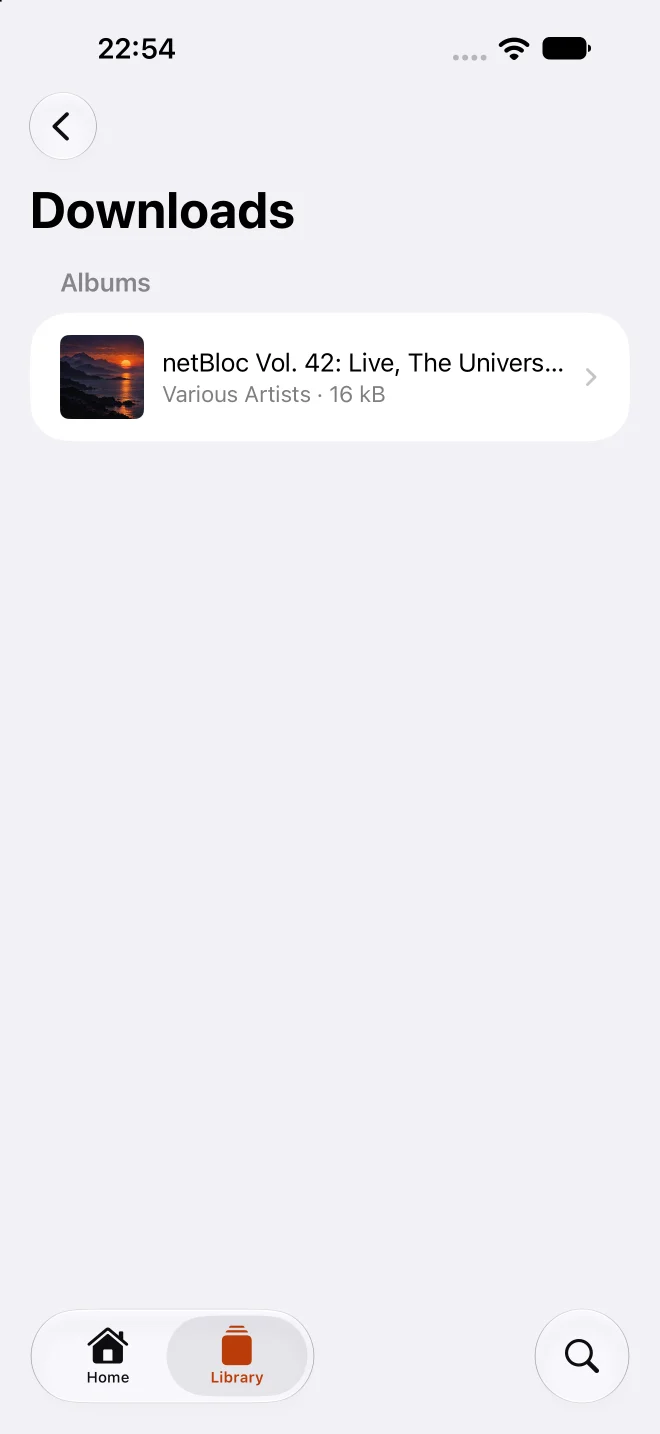
Before driving, use Hearthtone Pro to download an album, playlist or individual songs on the iPhone you connect to CarPlay. When the server is unreachable, Hearthtone uses the available offline library. Saved Smart Mixes can use the music available offline.
Follow the iPhone download steps and play a saved track once with the server unreachable to check your downloads.
Why is my library missing in the car?
A server that works on home Wi-Fi may be unreachable away from home. Check the connection on iPhone while parked. If you’re relying on offline playback, open Downloads on iPhone to confirm the music is already saved there.